
WordPress
Follow the steps below to set up the plugin for your WordPress website.
WordPress plugin setup
- Download the WordPress plugin. You will have to install it on your WordPress website.
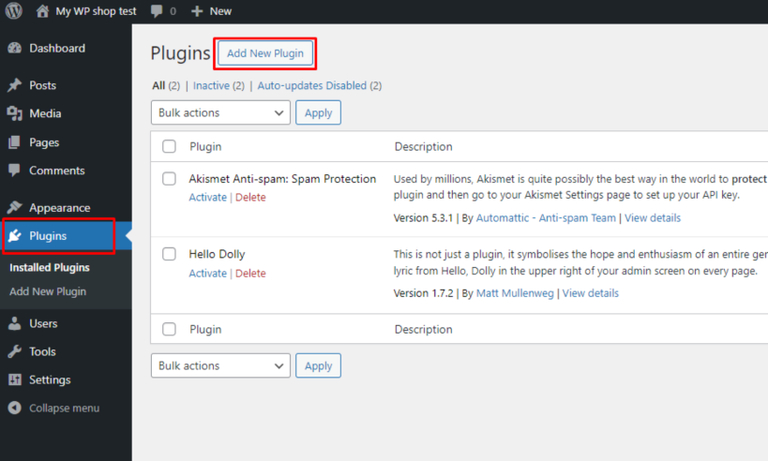
- Login to your Wordpress website admin panel. Click Plugins in the left menu and select Add New Plugin option:
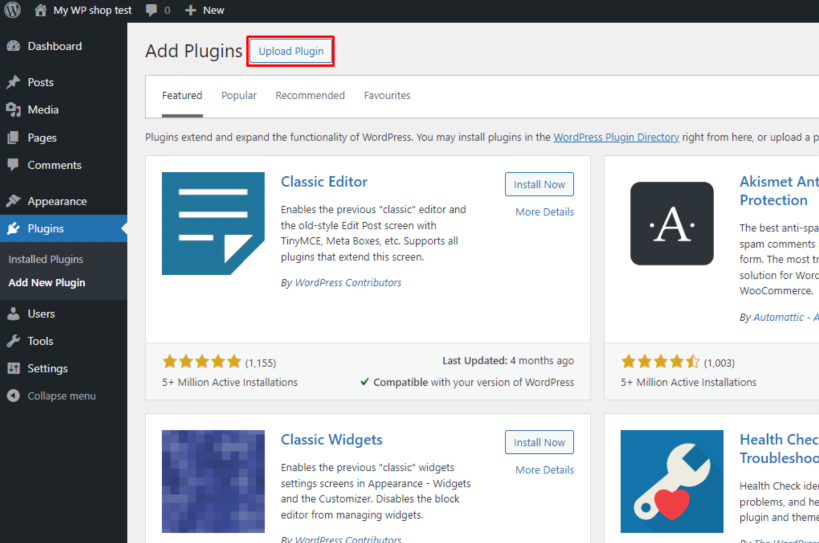
- Select Upload Plugin to start a manual uploading:
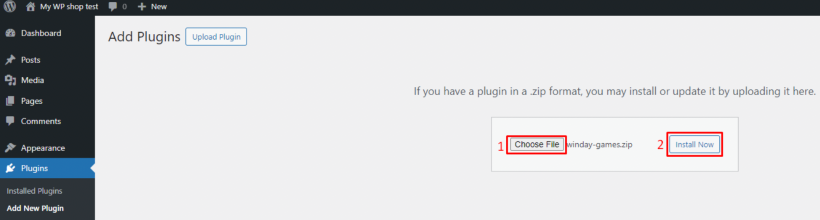
- Upload zipped plugin and click the Install Now button:
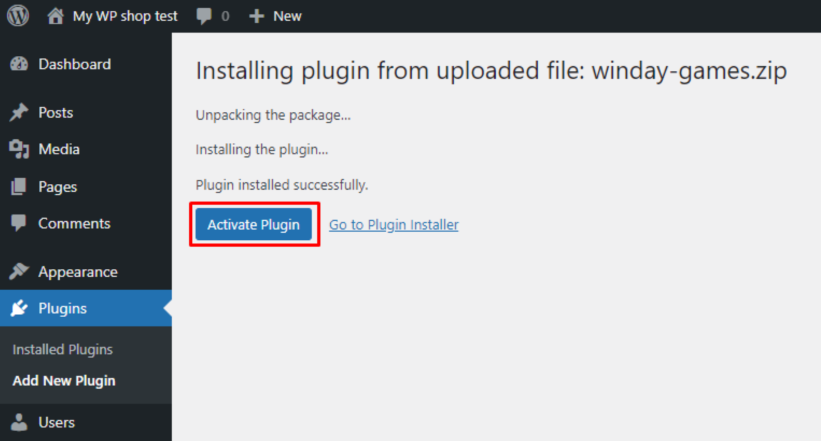
- Once the plugin is installed, click the Activate Plugin button:
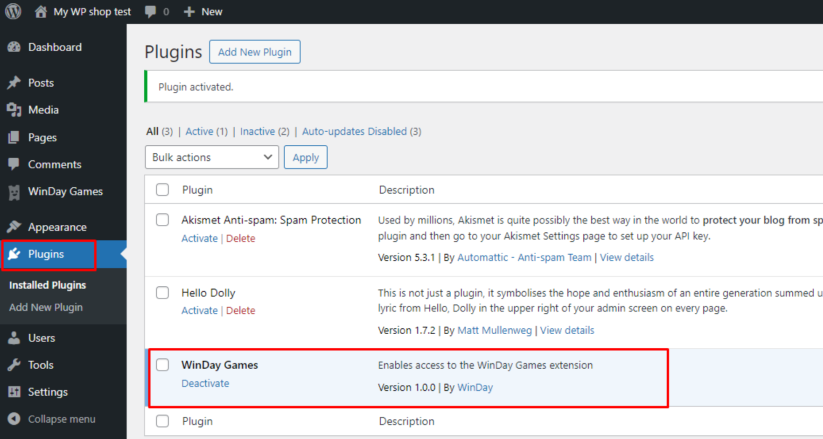
- After that, the plugin becomes accessible in the Plugins section of the WordPress admin panel:
-
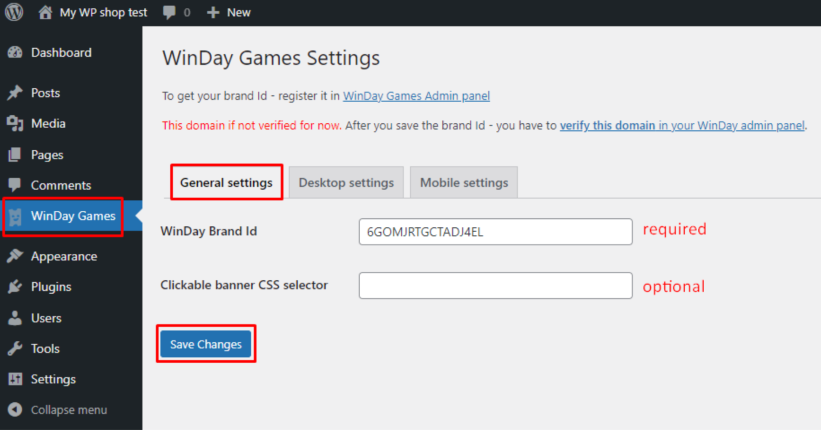
Also, WinDay Games page is added into your WordPress admin panel.
There are 3 tabs which are: General settings, Desktop Settings, and Mobile settings.In General settings, you need to paste your Brand ID:
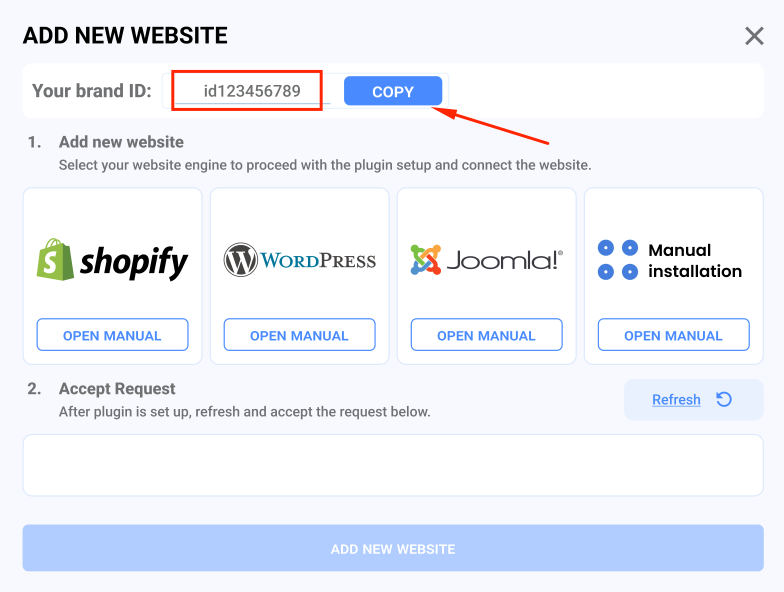
- Return to the Add New Website popup and copy your Brand ID:
- Go back to the WordPress panel and paste your Winday Brand ID into the General Settings tab.
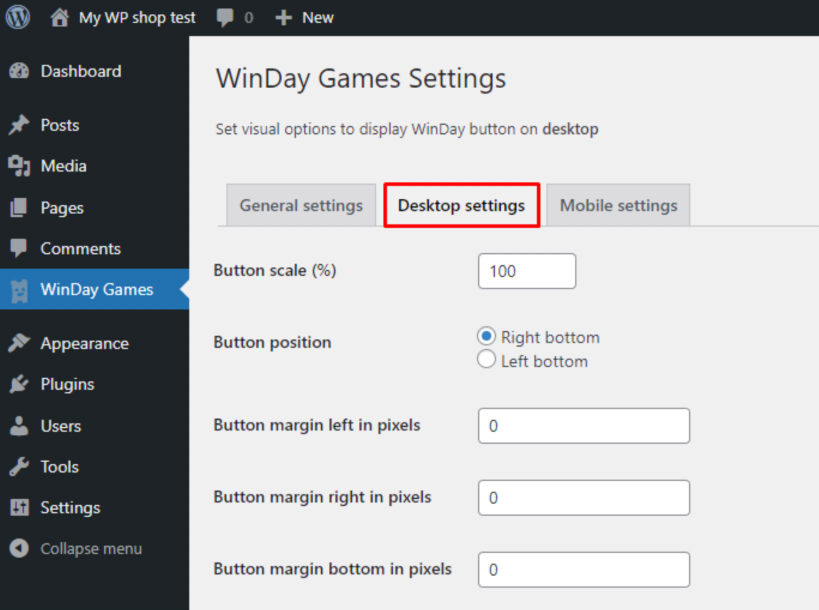
- In Desktop settings tab, there are additional settings that are optional and provide additional adjustments for the plugin appearance on the website from desktop devices:
- Mobile settings tab is also optional and provides additional adjustments for the plugin appearance on the website from mobile devices:
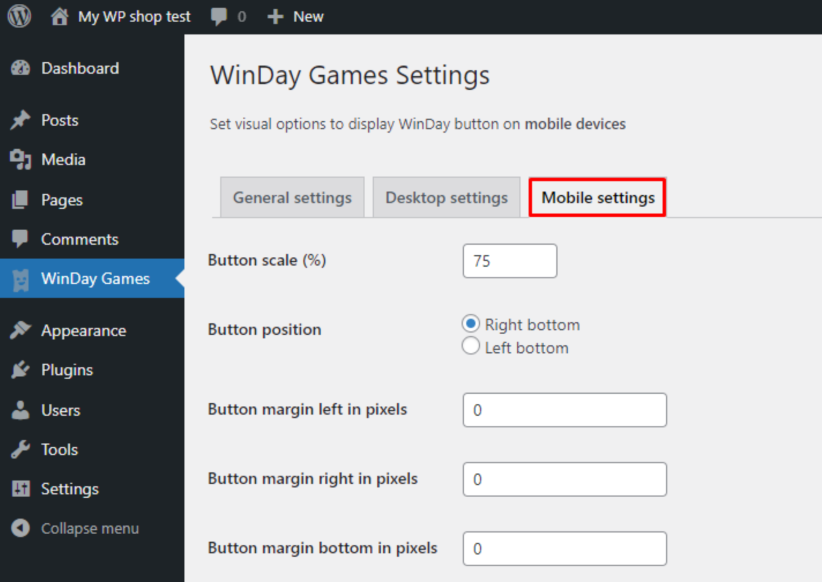
- Click the Save Changes button. The request will be sent to verify your website:

- Return to the Add New Website popup in the Brand Panel and click the Refresh button. Your website should appear in the list below:
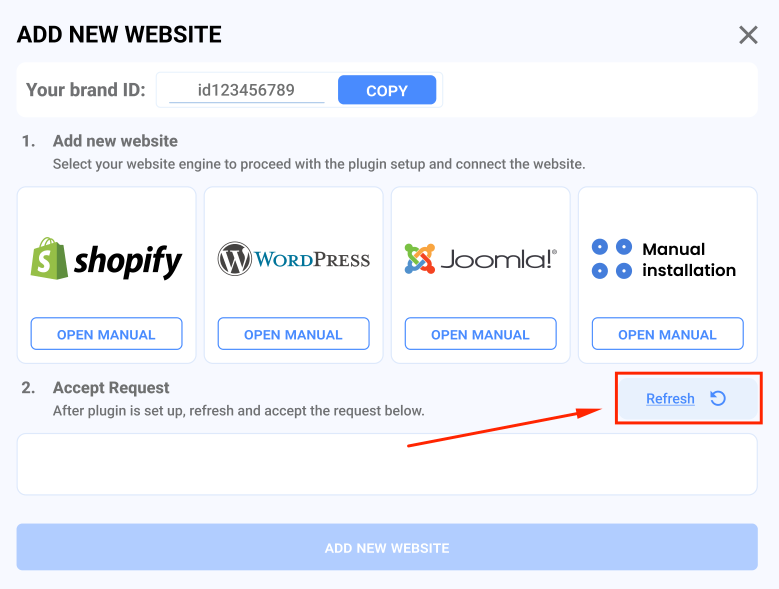
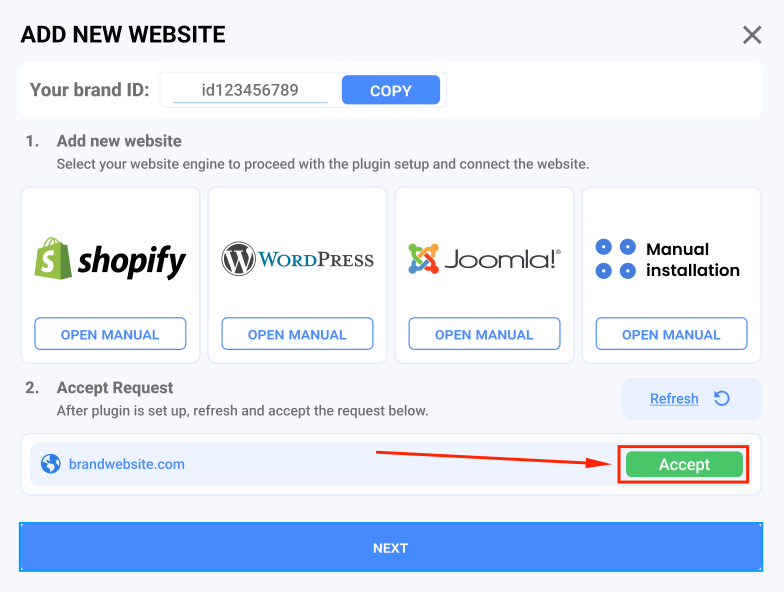
- Click the Accept button next to your site address to complete the synchronization. Then click the NEXT button below to finish:
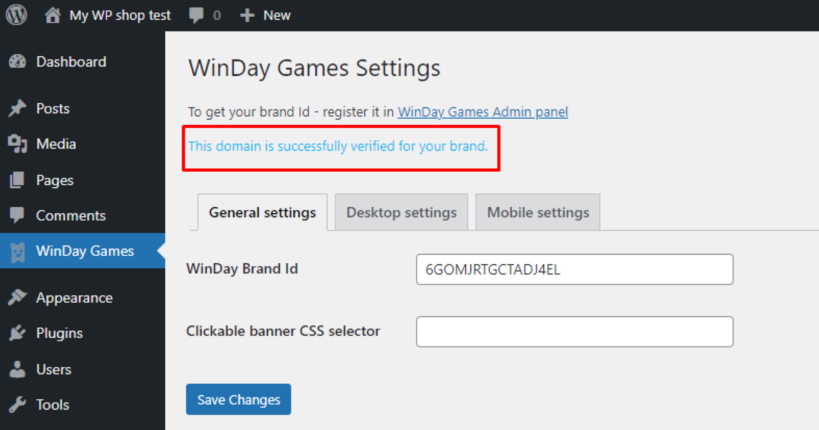
- Also, the verification state will be displayed in the WordPress panel:
Now, the plugin button should appear on your website.